

:)
How to Add Leaderboards to Your Godot 4 Game in 10 Minutes with the LEADR SDK
How to Add Leaderboards to Your Godot 4 Game in 10 Minutes with the LEADR SDK
Mar 10, 2026
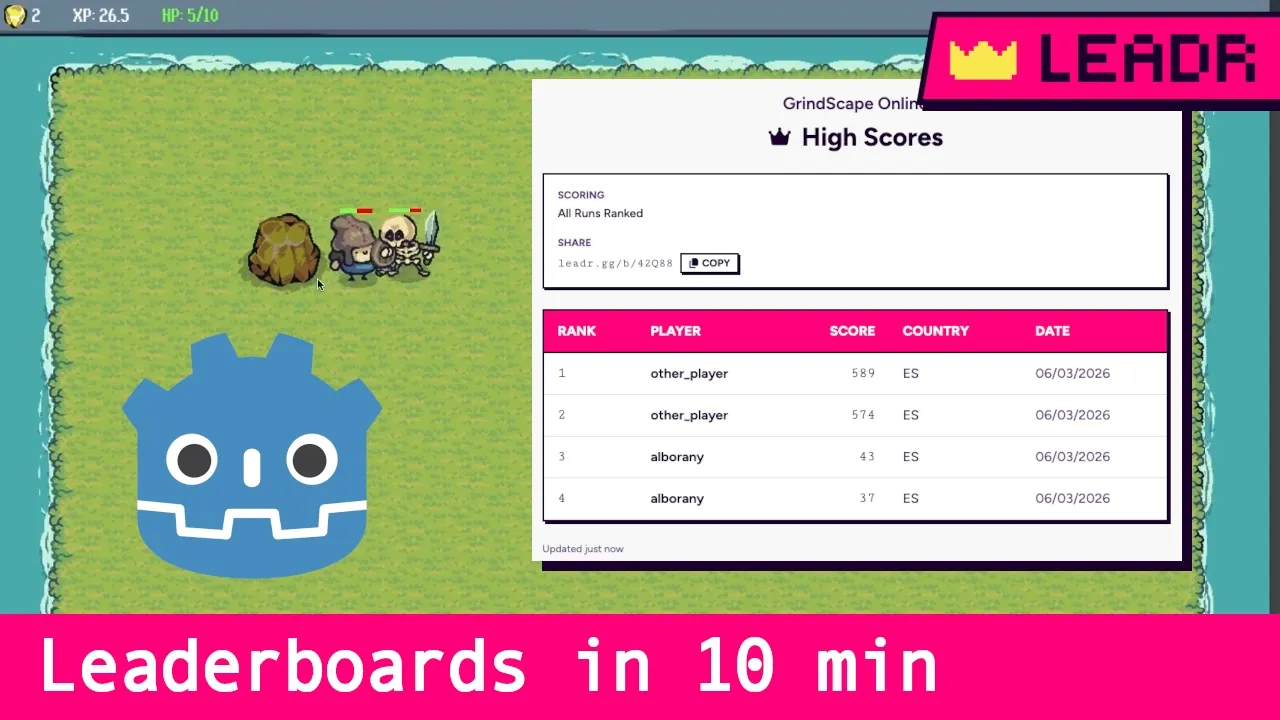
This is a walkthrough of adding leaderboards to an actual Godot 4 game using the LEADR SDK. Not a hypothetical project - we built GrindScape, a RuneScape-inspired mini-game in Godot 4, just for this! Then we integrated LEADR from scratch and the whole process took about ten minutes.
If you prefer watching over reading, the full video walkthrough covers every step:
If you prefer text, read on. The Grindscape source code is on GitHub if you want to follow along or see the finished integration in context. If you want the complete SDK reference, that's in the Godot SDK docs. This article covers the practical integration story: what we did, in what order, and why.
What we're starting with
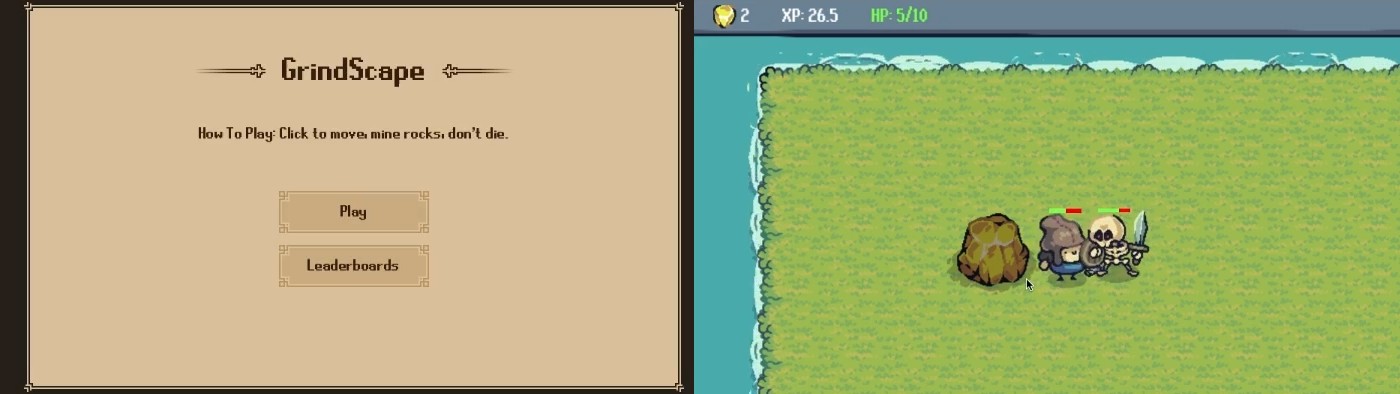
GrindScape is a small, simple game with a working gameplay loop. The player grinds a single mining skill, earns XP, and fends of a pesky skeleton NPC. There's a score that matters to players and that they'd want to compare. What it didn't have yet is any way to persist or share that score outside of the current session.
By the end of this walkthrough, scores submit from the game to a live leaderboard with a public URL anyone can visit in a browser. No server setup, no backend code, no web development.
What you'll need
We're assuming you already have a LEADR account and a game created in the LEADR app. If you don't, the quick start guide covers account setup in a couple of minutes. You'll also need Godot 4.x installed and a project with some kind of score or trackable value.
If you don't have an existing game, any test project with a variable you want to rank will work. The integration is the same regardless of what the score represents.
Installing the SDK
Head to the Godot SDK releases page and download the latest release. Extract the zip, then copy the leadr folder from the extracted addons directory into your Godot project's addons directory.
In Godot, go to Project > Project Settings > Plugins, find LEADR in the list, and enable it.
That's the install done. The plugin registers a Leadr autoload singleton automatically, which means you can call it from any script in your project without any additional setup.
Configuring the SDK
The SDK needs to know which game it's talking to. In the FileSystem dock, right-click on res://addons/leadr/, select Create New > Resource, search for "LeadrSettings", create it, and save it as leadr_settings.tres.
Click the new the resource to open it in the Inspector panel, and enter your game ID (visible in the LEADR app). The other settings have sensible defaults. If you're following along and want your scores to appear on the live public board, make sure test mode is unchecked.
The Godot SDK docs cover the full settings reference including test mode and debug logging, but for this walkthrough the game ID is the only thing you need to set.
Creating a leaderboard
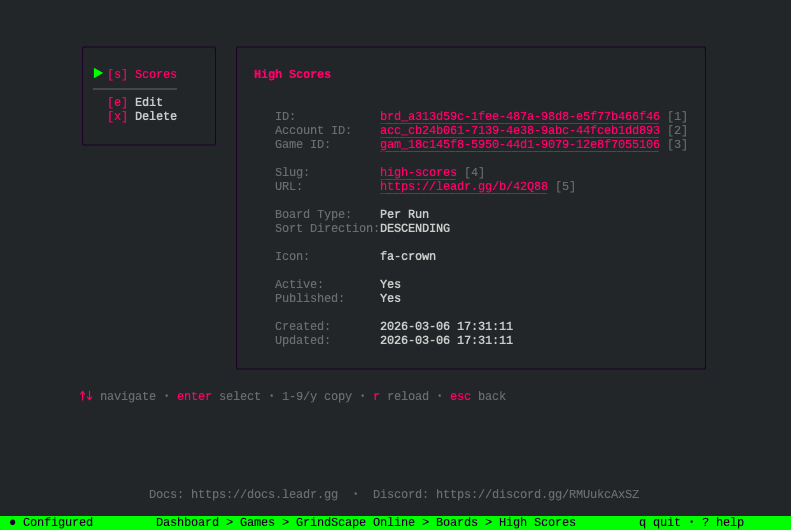
In the LEADR app, open your game, go to the boards page for your game, and create a new board. For GrindScape we called it "High Scores" and kept it simple: higher scores rank better, "Per Run" type means multiple score entries are allowed, the board is published and publicly visible.
That's all the configuration needed to get started. Options for only keeping the best or newest score, lowest-is-best ranking, periodic resets, invite-only boards and more exist if you need them, but the defaults are fine for a straightforward high score board. The advanced board features docs cover those when you're ready.
Copy your board ID. You'll need it shortly.
Submitting a score
This is the bit that matters, and it's shorter than you'd expect.
In GrindScape, there's a point in the code where a run ends and we have a final score. That's where the LEADR call goes. The integration looks like this:
var result := await Leadr.submit_score(
	board_id, score_value, player_name
)
var result := await Leadr.submit_score(
	board_id, score_value, player_name
)
Three parameters: the board ID you copied earlier, the score value, and a display name for the player. The SDK handles authentication, networking, and error states. You get back a result object with the player's rank on the board.
That's the entire integration. One function call at the point in your game where a score is finalised.
For games that need it, you can also pass a custom display string (useful for speedrun times where you want to show "1:23.456" instead of raw milliseconds) and metadata (level name, difficulty, character class, whatever context you want attached to the score). The SDK docs cover these optional parameters in full.
Seeing it live
Run the game, play through to a score submission, and check the LEADR app. The score should appear on your board.
Now open your board's public URL in a browser (which you can find in the LEADR app). Your score is there, ranked, on a live page that updates as new scores come in. You can share this URL with players, embed it on your game's website, or link it from your itch.io page.
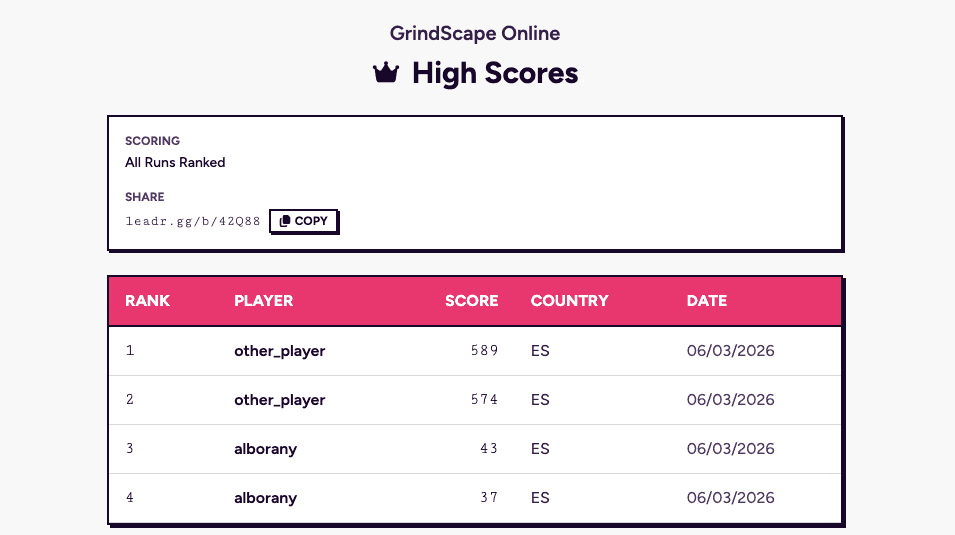
That's a working leaderboard, integrated and live, from a Godot 4 game.
What you've got
To recap what ten minutes of work gives you:
Scores submitting from your game with a single function call. A live, public leaderboard page that requires no web development on your part. Built-in anti-cheat that validates scores server-side and flags suspicious submissions. An app for managing entries, reviewing metadata, and moderating your boards. And the same infrastructure that handles production games, not a demo you'll need to replace later.
Going further
The integration above covers the simple path: submit a score, see it on the board. For a production game you'll likely want more.
The Godot SDK docs cover fetching scores for in-game display (top scores, "around me" queries, the current player's scores), pagination for boards with many entries, error handling patterns, and more. The board configuration reference covers other keep strategies, counter boards, ratio boards (win percentages, K/D ratios), and timed-event boards. Board templates handle seasonal resets, weekly challenges, and repeating events.
LEADR also has a Unity SDK and a REST API for other engines. If your game isn't in Godot, the same concepts apply.
Try it
LEADR is free and open source. The quick start guide gets you from zero to a working leaderboard in a few minutes. The Grindscape source code is available on GitHub as a working reference for the full integration. If you run into anything, the LEADR Discord is always open.
Grindscape will be available to play on itch.io soon! — link to follow
This is a walkthrough of adding leaderboards to an actual Godot 4 game using the LEADR SDK. Not a hypothetical project - we built GrindScape, a RuneScape-inspired mini-game in Godot 4, just for this! Then we integrated LEADR from scratch and the whole process took about ten minutes.
If you prefer watching over reading, the full video walkthrough covers every step:
If you prefer text, read on. The Grindscape source code is on GitHub if you want to follow along or see the finished integration in context. If you want the complete SDK reference, that's in the Godot SDK docs. This article covers the practical integration story: what we did, in what order, and why.
What we're starting with
GrindScape is a small, simple game with a working gameplay loop. The player grinds a single mining skill, earns XP, and fends of a pesky skeleton NPC. There's a score that matters to players and that they'd want to compare. What it didn't have yet is any way to persist or share that score outside of the current session.
By the end of this walkthrough, scores submit from the game to a live leaderboard with a public URL anyone can visit in a browser. No server setup, no backend code, no web development.
What you'll need
We're assuming you already have a LEADR account and a game created in the LEADR app. If you don't, the quick start guide covers account setup in a couple of minutes. You'll also need Godot 4.x installed and a project with some kind of score or trackable value.
If you don't have an existing game, any test project with a variable you want to rank will work. The integration is the same regardless of what the score represents.
Installing the SDK
Head to the Godot SDK releases page and download the latest release. Extract the zip, then copy the leadr folder from the extracted addons directory into your Godot project's addons directory.
In Godot, go to Project > Project Settings > Plugins, find LEADR in the list, and enable it.
That's the install done. The plugin registers a Leadr autoload singleton automatically, which means you can call it from any script in your project without any additional setup.
Configuring the SDK
The SDK needs to know which game it's talking to. In the FileSystem dock, right-click on res://addons/leadr/, select Create New > Resource, search for "LeadrSettings", create it, and save it as leadr_settings.tres.
Click the new the resource to open it in the Inspector panel, and enter your game ID (visible in the LEADR app). The other settings have sensible defaults. If you're following along and want your scores to appear on the live public board, make sure test mode is unchecked.
The Godot SDK docs cover the full settings reference including test mode and debug logging, but for this walkthrough the game ID is the only thing you need to set.
Creating a leaderboard
In the LEADR app, open your game, go to the boards page for your game, and create a new board. For GrindScape we called it "High Scores" and kept it simple: higher scores rank better, "Per Run" type means multiple score entries are allowed, the board is published and publicly visible.
That's all the configuration needed to get started. Options for only keeping the best or newest score, lowest-is-best ranking, periodic resets, invite-only boards and more exist if you need them, but the defaults are fine for a straightforward high score board. The advanced board features docs cover those when you're ready.
Copy your board ID. You'll need it shortly.
Submitting a score
This is the bit that matters, and it's shorter than you'd expect.
In GrindScape, there's a point in the code where a run ends and we have a final score. That's where the LEADR call goes. The integration looks like this:
var result := await Leadr.submit_score(
	board_id, score_value, player_name
)
Three parameters: the board ID you copied earlier, the score value, and a display name for the player. The SDK handles authentication, networking, and error states. You get back a result object with the player's rank on the board.
That's the entire integration. One function call at the point in your game where a score is finalised.
For games that need it, you can also pass a custom display string (useful for speedrun times where you want to show "1:23.456" instead of raw milliseconds) and metadata (level name, difficulty, character class, whatever context you want attached to the score). The SDK docs cover these optional parameters in full.
Seeing it live
Run the game, play through to a score submission, and check the LEADR app. The score should appear on your board.
Now open your board's public URL in a browser (which you can find in the LEADR app). Your score is there, ranked, on a live page that updates as new scores come in. You can share this URL with players, embed it on your game's website, or link it from your itch.io page.
That's a working leaderboard, integrated and live, from a Godot 4 game.
What you've got
To recap what ten minutes of work gives you:
Scores submitting from your game with a single function call. A live, public leaderboard page that requires no web development on your part. Built-in anti-cheat that validates scores server-side and flags suspicious submissions. An app for managing entries, reviewing metadata, and moderating your boards. And the same infrastructure that handles production games, not a demo you'll need to replace later.
Going further
The integration above covers the simple path: submit a score, see it on the board. For a production game you'll likely want more.
The Godot SDK docs cover fetching scores for in-game display (top scores, "around me" queries, the current player's scores), pagination for boards with many entries, error handling patterns, and more. The board configuration reference covers other keep strategies, counter boards, ratio boards (win percentages, K/D ratios), and timed-event boards. Board templates handle seasonal resets, weekly challenges, and repeating events.
LEADR also has a Unity SDK and a REST API for other engines. If your game isn't in Godot, the same concepts apply.
Try it
LEADR is free and open source. The quick start guide gets you from zero to a working leaderboard in a few minutes. The Grindscape source code is available on GitHub as a working reference for the full integration. If you run into anything, the LEADR Discord is always open.
Grindscape will be available to play on itch.io soon! — link to follow
Ready to add leaderboards to your game?
Ready to add leaderboards to your game?